Printing Templates Such as Lined or Graph Paper
This section describes how to print a standard form.
Printable Template Form
You can print a standard form such as pattern paper that can be used for an album mount or place mat, graph paper, staff paper, a checklist, or a schedule form.
Printing Templates
Print template form following the procedure below.
-
Select
 Template print on the HOME screen, then press the OK button.
 -
Use the

 buttons to select template you want to print and press the OK button.
When a message appears, check it and press the OK.
-
Use the

 buttons to select the form you want to print and press the OK button.
 -
If necessary, change the settings using the
buttons and press the OK button.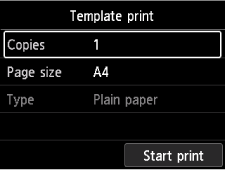
-
Copies
Use the
buttons to specify the number of copies and press the OK button. -
Page size
Use the
buttons to select the page size and press the OK button. Note
Note-
Depending on the form, some setting of page size cannot be specified. If it is selected,
 and Error details are displayed on the printer's LCD. In this case, select on the upper left on the printer's LCD to check the message and change the setting.
-
-
Type
Use the
buttons to select the media type and press the OK button.Note-
The paper type is set to Plain paper, except pattern paper.
-
-
-
Load paper.
-
Select Start print.
The printer starts printing.
